The search criteria are what separates a list of 100 useful candidates
from a list of 100 profiles you'll discard one by one. This is step 2 of
the list wizard, and the same screen comes back when you hit “Add
candidates” inside an existing list.
You arrive with the filters already filled in from the role description
you wrote in step 1. Here's what each one does.
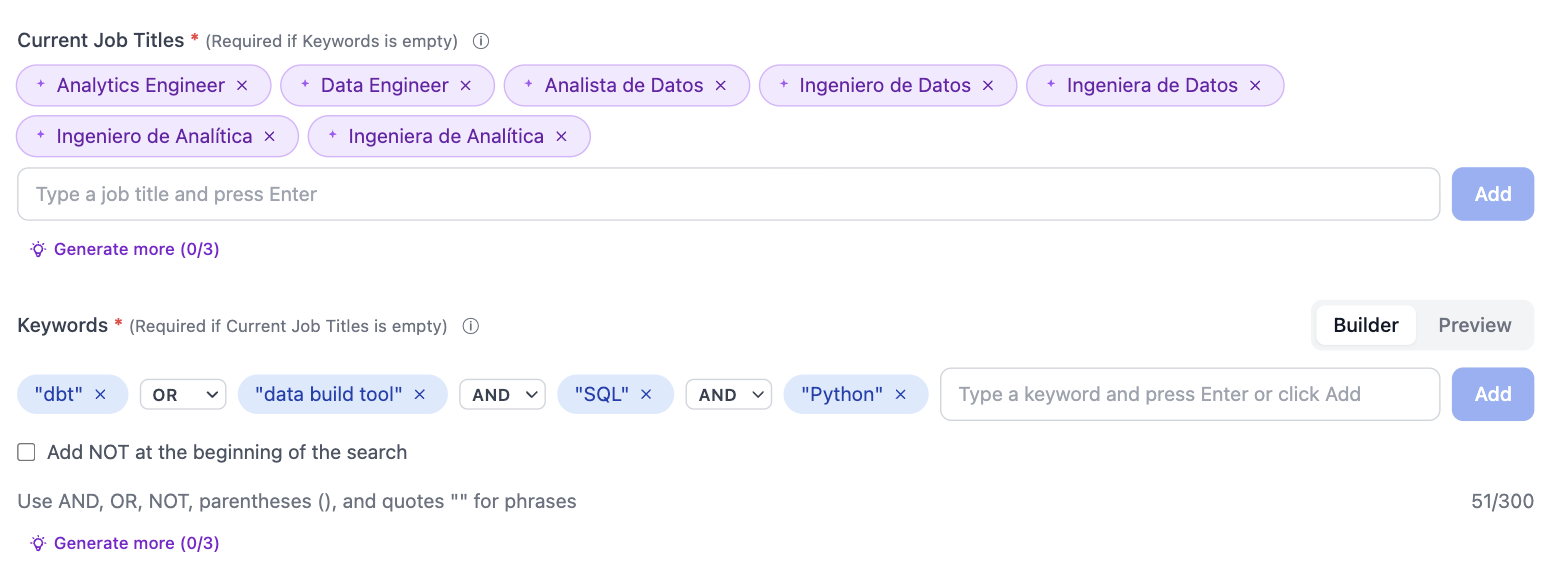
Current Job Titles
Matches against the profile headline. Type Data Engineer and it
pulls candidates whose headline is that or contains it: Senior Data
Engineer, Data Engineer at Acme.
Titles show up as tags. To add another, type it and press Enter (or
the Add button); to drop one, the × on the tag.
Below there's “Generate more”, which asks the AI for more variants of
the title. It's capped at 3 uses per list.
Keywords
Keywords are searched anywhere in the profile (About, experience,
skills), not just the headline.
There are two views:
- Builder: each word is a tag, and between tags you pick the
operator from a dropdown (
AND, OR).
- Preview: the same search written out as text, so you can read the
whole thing at once.
It takes AND, OR, NOT, parentheses () and quotes "" for exact
phrases, up to 300 characters. The “Add NOT at the beginning of the
search” checkbox negates the search from the start, and there's another
“Generate more” here, also capped at 3 uses.
For example, for people who know ETL, SQL, Python and dbt:
"dbt" AND "SQL" AND "Python" AND "ETL"
Locations
Up to 20 locations. Type and pick cities from the search box.
“Expand” (up to 5 uses) asks the AI to widen the area for you, handy
when one city runs short of candidates.
It's the filter that trims the candidate universe the most, so it's the
first one to loosen when a search returns too little.
Optional filters
Below that there are five more filters, all optional:
- Schools (up to 10): specific universities or schools.
- Industries (up to 20): the current company's sector.
- Years of Experience: total years across all roles.
- Years at Current Company: how long they've been where they are.
- Company Headcount: size of their current company.
The last three are range-based: tick every range that works for you,
not just one. Looking for 4 to 10 years of experience? Select every range
inside that span.
Maximum Candidates and cost
A slider sets the cap on how many candidates the search returns (25 by
default). It's a ceiling: if fewer candidates match you get fewer; if more
match, you can
extend the list later.
Right below, the Cost Estimation box spells out the price: each
candidate extracted and AI-enriched costs 3 credits, so 25 candidates is
up to 75 credits.

More in how credits work.
How to combine them
- Review the titles the AI proposed and drop the ones that don't
describe the role.
- Set the location: it's what trims the most.
- Keep only the must-haves in Keywords. Every
AND narrows a lot.
- Touch the ranges only if the volume is still unmanageable.
- Ask for few candidates the first time, look at what comes back,
then scale.
If the search returns nobody, see
what to do when a search returns no results.