Importing candidates from a CSV

Upload your own spreadsheet ( a name and a LinkedIn link is enough ) and drop those candidates into a list.

Updated

If you already have candidates identified (a spreadsheet from an earlier process, a LinkedIn export, the sheet your client sent you), there's no need to search for them again: upload it and they land in HeyTalent like any other candidate.

Importing lives in Contacts, under the Import CSV button in the top right.

Preparing the file

It takes a LinkedIn CSV export or any contact spreadsheet. The minimum you need is two columns:

  • one with the candidate's name,
  • and one with the link to their LinkedIn profile.

Working in Google Sheets? File → Download → Comma-separated values (.csv) and you're done. The file has to be a .csv and weigh under 10 MB.
The LinkedIn link is what actually identifies the candidate: with it, HeyTalent can recognise them, fill in the rest of the profile and avoid duplicates. A CSV of names alone gives you far less.

Uploading it

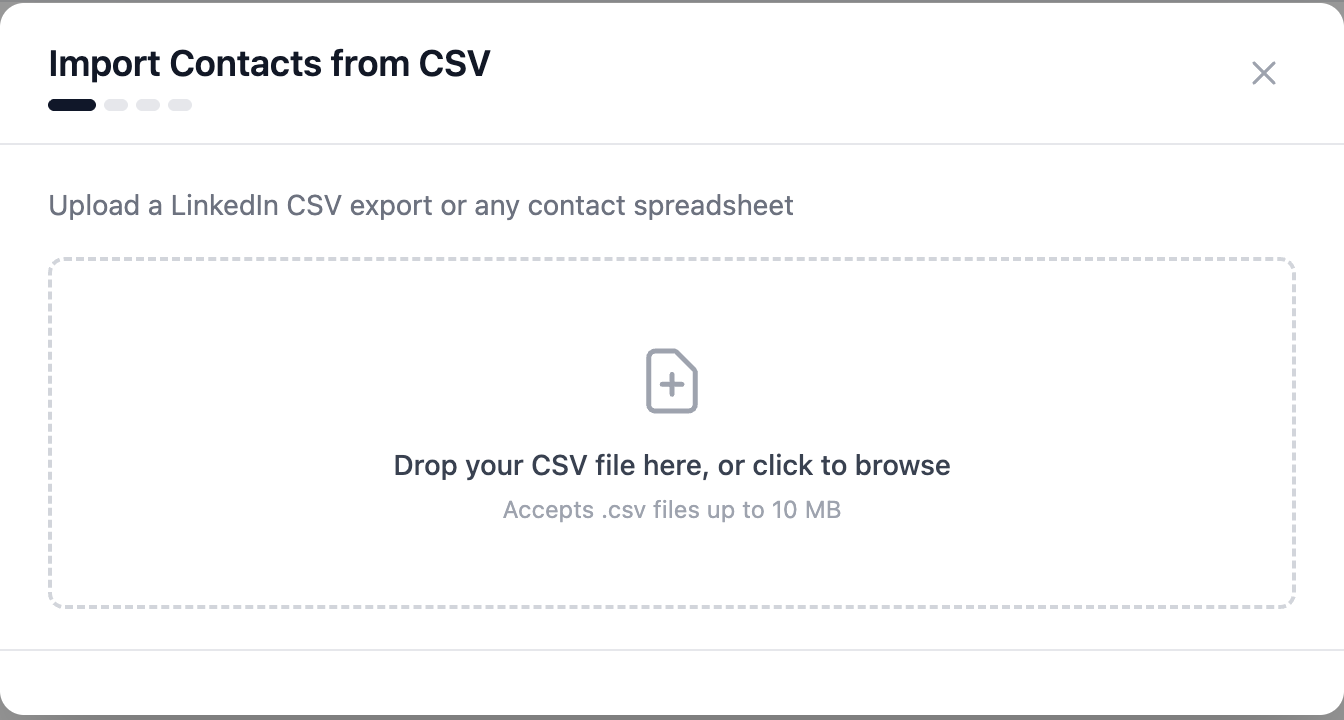
Hit Import CSV, drag the file into the drop area (or click to browse) and follow the wizard through to assigning the candidates to the list you want them in.

The import dialog, with the CSV drop area

After importing

Imported candidates behave like extracted ones: they show up in Contacts and in the list you assigned them to, and you can find their email and phone, tag them and put them into a campaign.

Related articles