Once a candidate fits, LinkedIn stops being enough: you want to email them or call them. HeyTalent looks those details up for you, and you can ask for it from three different places depending on where you're working.
What it costs
| Detail | Credits |
|---|---|
| 25 | |
| Phone | 75 |
Both are charged on success only: if we don't find the detail, nothing is deducted. When the lookup works, it is.
From a list
The usual route after filtering. Tick the checkbox on the candidates you care about and the action bar appears at the bottom with Phone and Email.
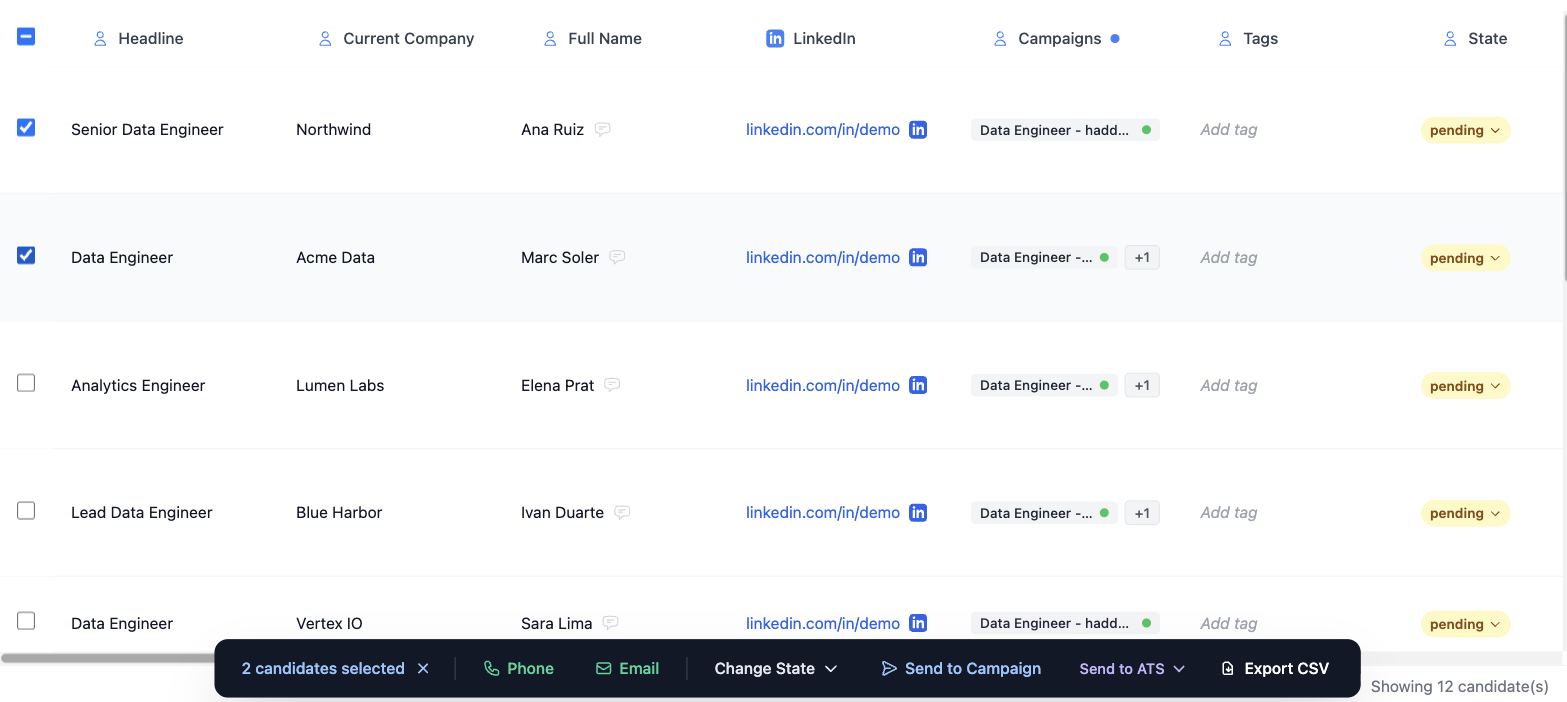
You can tick one, several, or the header checkbox to select everything the table is currently showing. Mind that last one: with filters active it selects what's filtered, which is exactly what you want.
From Contacts
Contacts is the cross-cutting view of all your people, whatever list they came from. It offers both ways:
- One at a time: the phone and email columns have a per-row enrich button.
- In bulk: tick the rows and the bar appears with Enrich Phone and Enrich Email.
This is where to go when you want to enrich people from a while back, or candidates you imported from a CSV.
From the Inbox
When you're mid-conversation and the candidate replies interested, you don't have to leave. In the Inbox's right-hand panel, under Contact information, the Email and Phone rows each have a button to look it up right there.
It's the fastest route when you need the detail now: you've just agreed to send them something by email and you don't want to lose the thread.
What to expect
- Not every candidate has data available: some profiles yield no phone, or email only. Those attempts cost you nothing.
- Email and phone are separate fields, with separate buttons and separate prices. If you're going to write, ask for the email only: the phone costs three times as much.
- Whatever is found is stored on the candidate and comes out in the CSV export if you leave those columns on.